Jobber review for cleaning businesses: 14-day test
We ran a made-up cleaning company on Jobber for 14 days. Scheduling, quotes and the cleaner app held up. Team pricing and missed-job alerts didn't.
This page may contain affiliate links. How we make money
The short version
Jobber is a very good option for cleaning business owners who want to run things in a more organized, professional way. In our 14-day test, scheduling, quotes, invoices and the cleaner's app held up, and support answered fast. A crew of three needs the Connect plan, though: $149 to $199 a month at regular prices.
What held up
- Easy to use: setting up a weekly recurring clean took about 10 minutes, and the calendar is easy to read.
- Quotes and invoices look professional. Our client approved and signed the quote online, and it became a job and an invoice without retyping anything.
- The cleaner's app is simple: new-job alerts arrived almost instantly, and the timer, photos and checklists were easy to use on the phone.
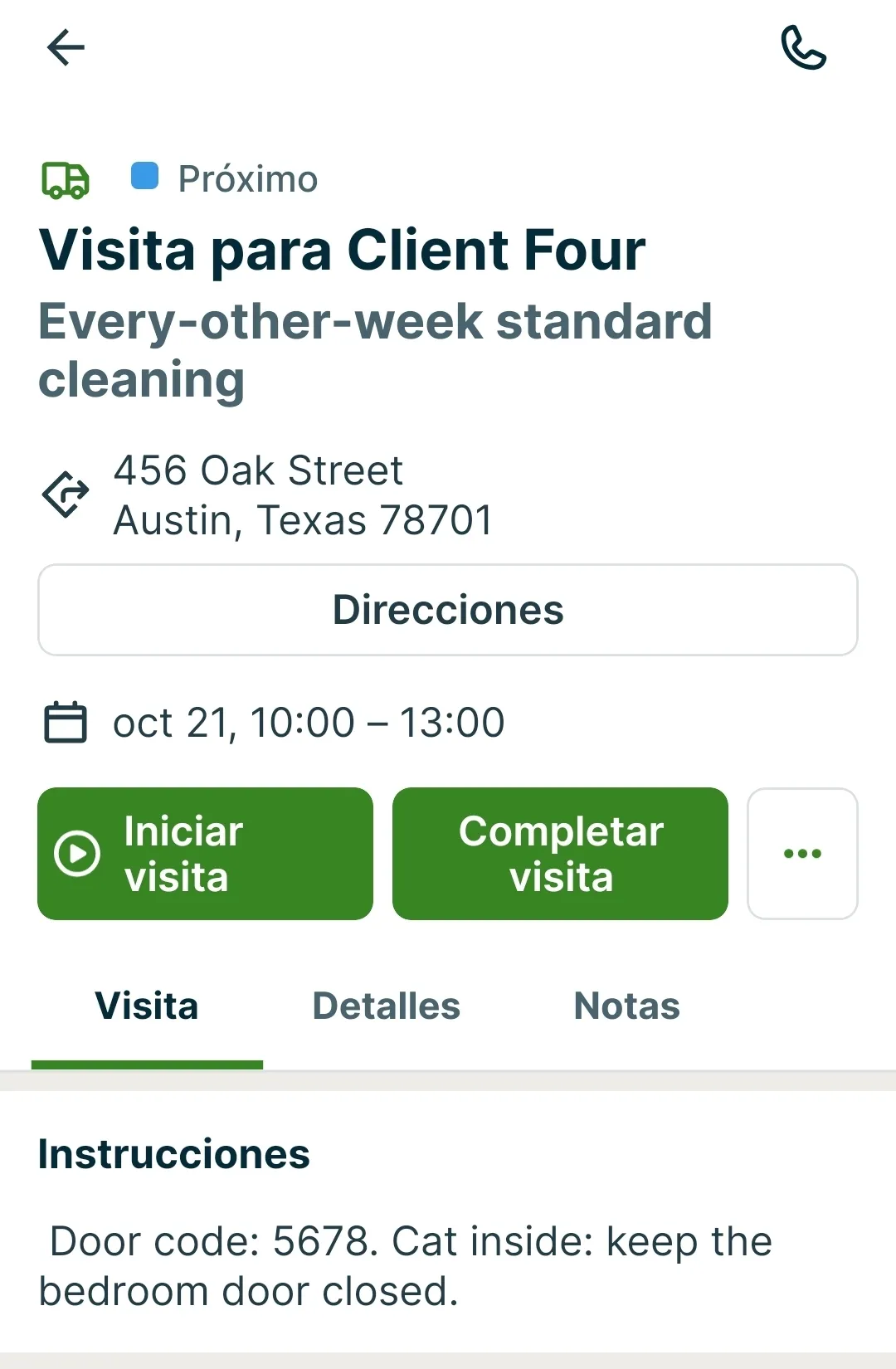
- Job instructions, like a door code, show at the top of the cleaner's visit screen.
- Email reminders were on by default and arrived on time, the day before and 1 hour before the visit.
- Checklists with required photos, and every report, worked in the free trial.
- Support was fast and right: a person joined the chat in under a minute, and the email answer came the next day.
- No credit card to start, and the trial ends on its own.
What didn't
- A team needs Connect: $149/mo billed annually or $199/mo with no commitment, for up to 5 users. Core is for 1 user and has no automated reminders or checklists.
- There's a learning curve. Some options took us a while to figure out, like the Salesperson and Team fields on a job.
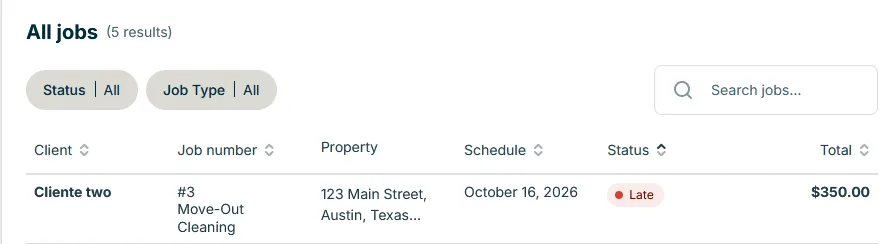
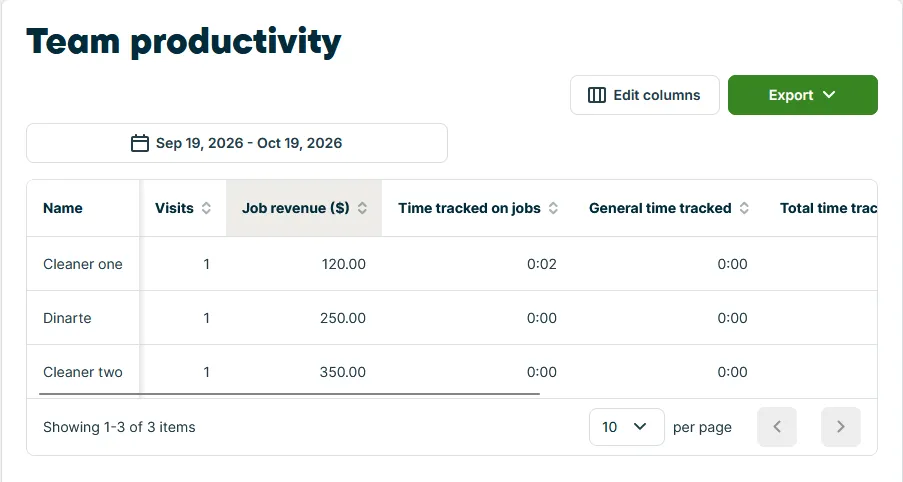
- No warning the day a cleaning was missed. It showed as Late three days later, and a report still credited the cleaner with $350.
- Booking confirmations aren't automatic: you send each one with a button.
- Jobber didn't flag a cleaning we booked for 9 PM by mistake.
- Client notes sit in a separate tab, and Jobber didn't alert us when a cleaner left a note.
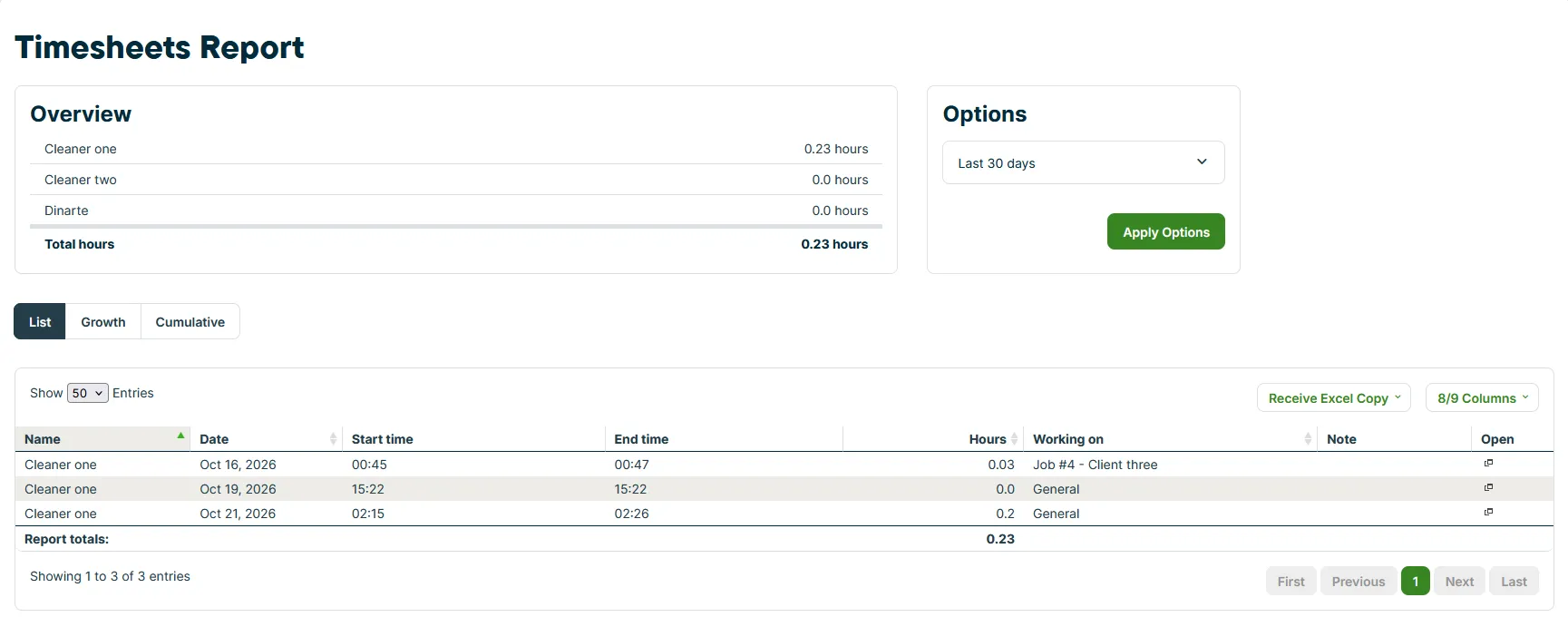
- Reports default to the last 30 days, which hides upcoming work, and hours show as decimals (0.03 h).
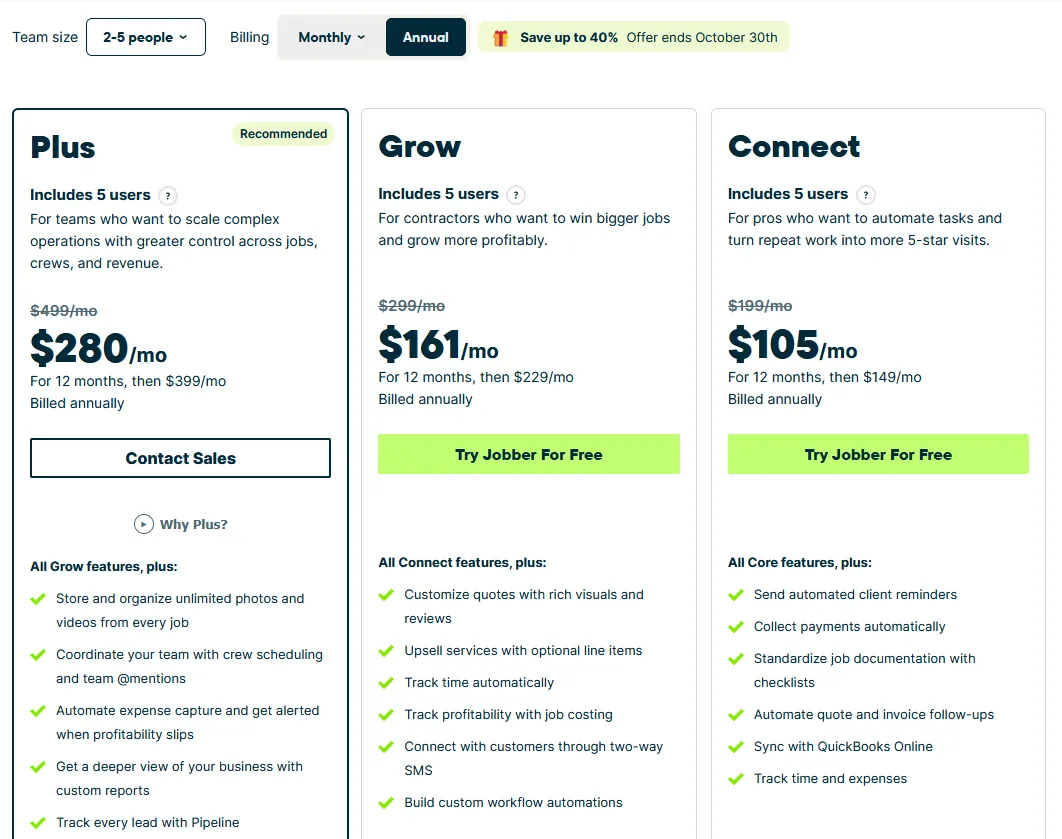
- The pricing page marks pricier plans as Recommended, while support and Jobber's plan wizard recommended Connect.
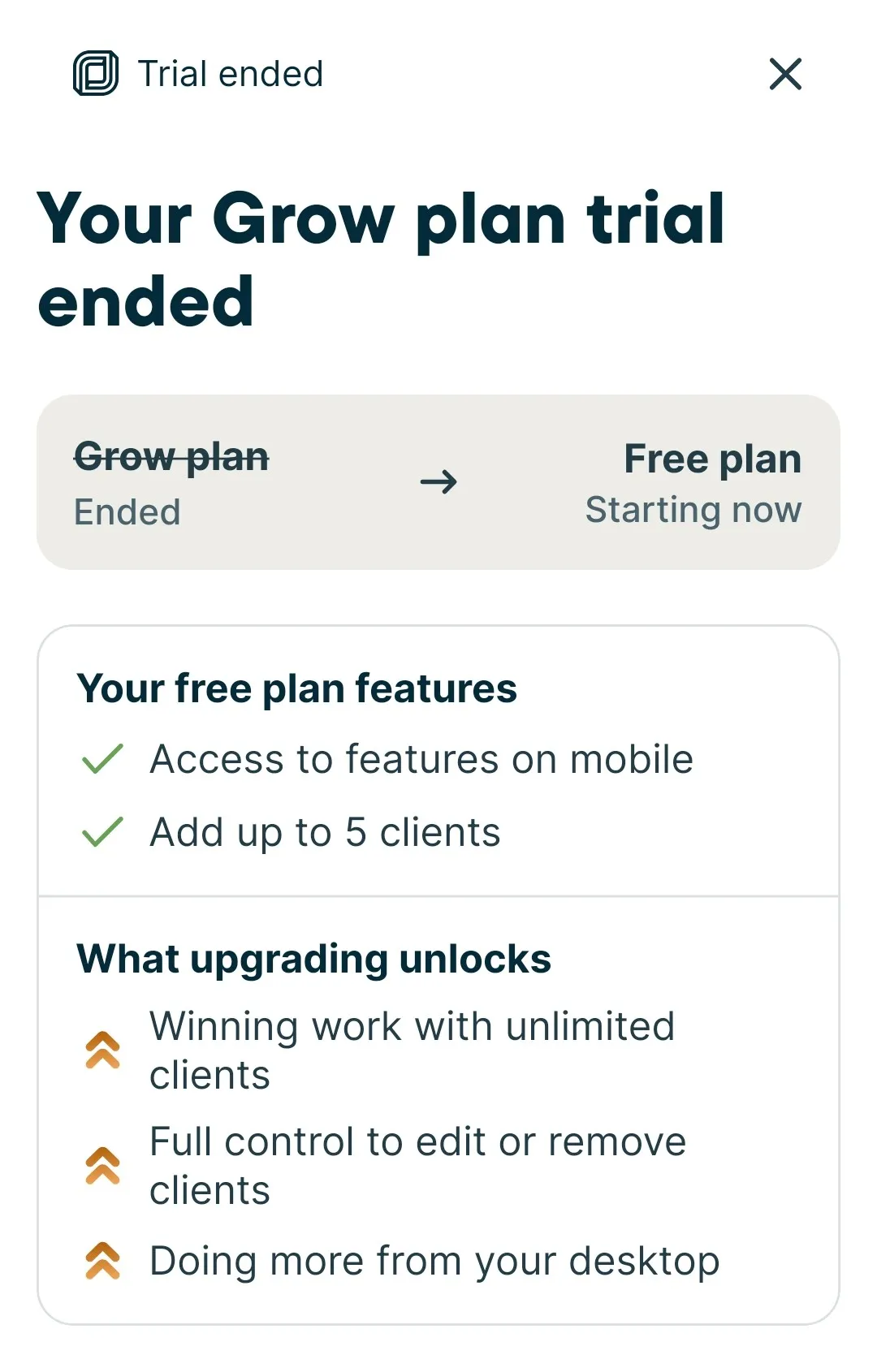
- No email when the trial ended. The web app locked, and our client's automated reminders stopped.
A good fit if
- Residential cleaning businesses that want to look professional, from the first quote to the invoice
- Small crews (2 to 5 people) that need instructions, checklists and photos on each cleaner's phone
- Owners who want one place to organize the schedule, the team and the paperwork
Business types: A crew of 2 to 10
Look elsewhere if
- A one-person business on a tight budget: Core lacks automated reminders and checklists, and Connect for 1 user is $99 to $139 a month
- Owners who need an alert the same day a cleaning is missed
How we tested
We signed up for Jobber’s free trial from the public website on October 8, 2026, and ran our made-up cleaning company, Sparkle Test Co., on it for 14 days. We set it up as a residential cleaning business with 2 to 5 people. Our team was the owner plus two test cleaners, and our clients were made-up households in Austin, Texas, each with a test email address we could check.
We did the owner’s work in the web app on a computer and the cleaner’s side in Jobber’s Android app. Everything below comes from our daily notes and screenshots.
Setup
Signing up and adding our first client took about 20 minutes, and Jobber didn’t ask for a credit card. The signup asks for your company name, your industry (we picked Residential Cleaning), your team size, years in business and expected revenue.
One snag: the phone field only accepts US and Canadian numbers. Our tester’s number wasn’t accepted, so we used a reserved example number.
Jobber came with sample services already loaded, so we didn’t start from a blank page. Creating our three services (Standard Cleaning at $120, Deep Cleaning at $250 and Move-Out Cleaning at $350) and four more clients took about 10 minutes, and each service only asks for simple details.
Our first impression was that the app is easy to use and well laid out. Still, it takes time to learn, and some options took us a while to figure out. A new business owner should expect to lose some time at first. It got easier with practice.
Scheduling and recurring cleans
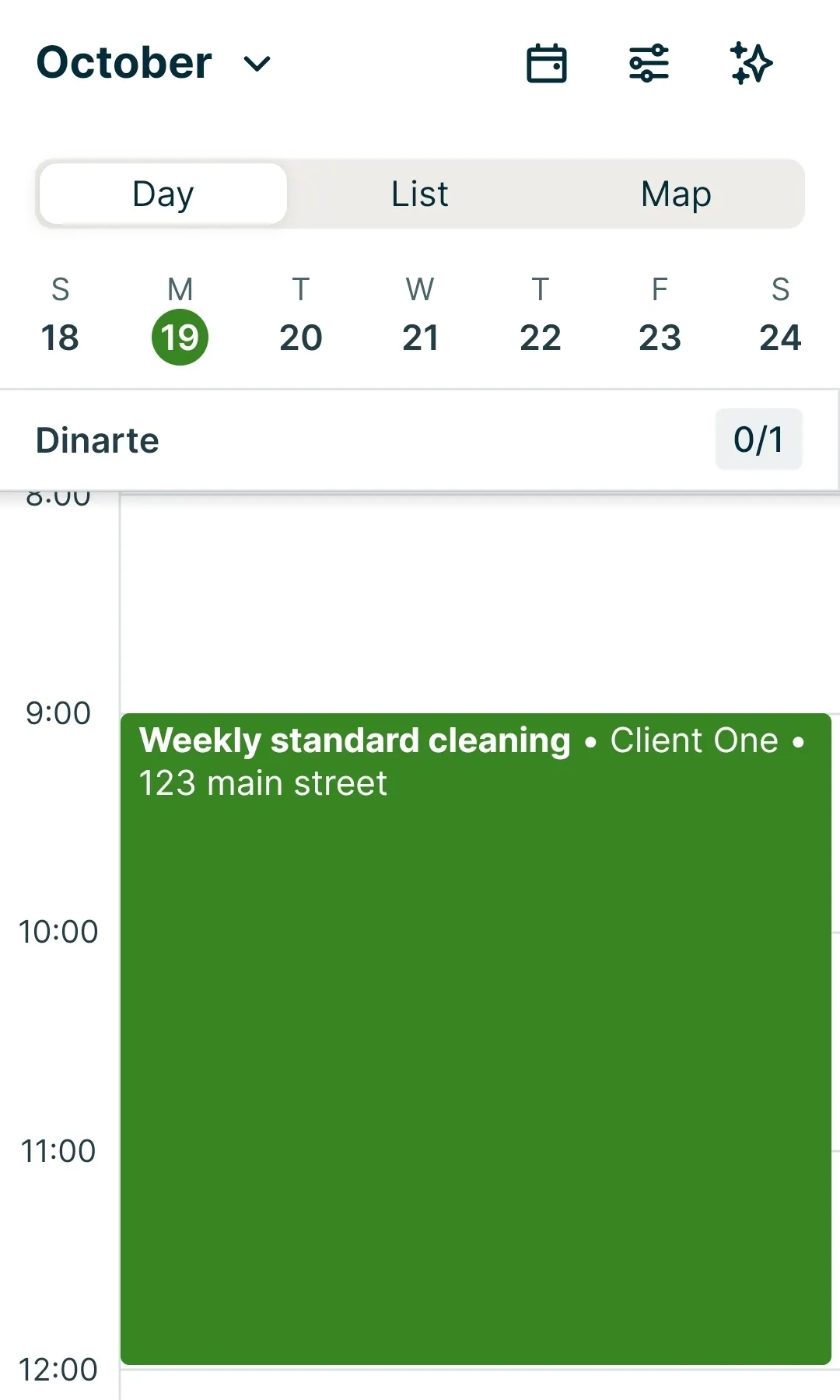
On day 3 we booked a weekly standard cleaning for our first client: every Monday for three months, at $120 a visit. It took about 10 minutes in the phone app, and the repeat option was easy to find, with choices like every week, every 2 weeks or every month.
Then we moved one visit from Monday to Thursday. Jobber didn’t ask whether to move just that visit or all of them. It moved only that one, and the rest stayed on Mondays, which is what we wanted.
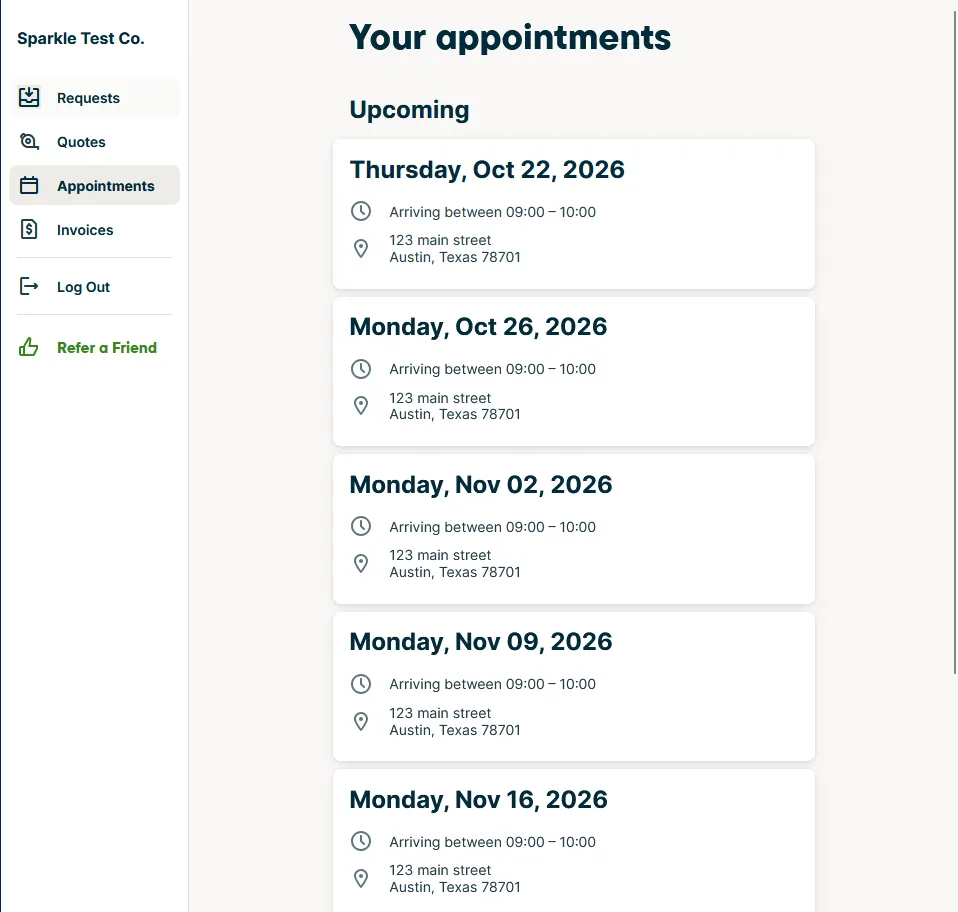
One thing went wrong. At one point we set the weekly cleaning to 9 PM by mistake, and Jobber didn’t flag a house cleaning that starts at night. Two days later, the job’s main schedule still showed 9:00 PM to 12:00 PM, even though the visits themselves listed the right morning time. The reminders didn’t pick up the mistake either: for the Thursday, October 22 visit, both gave a 9:00 to 10:00 AM arrival window, and the 1-hour reminder came at 8:01 AM.
The calendar is easy to read and works well for organizing the week, and each cleaner gets their own column. On day 13 we set up a second recurring job from scratch, with a new client, a cleaner, instructions and a checklist. It took about 10 minutes, and this time the time was right on the first try.
Quotes and invoices
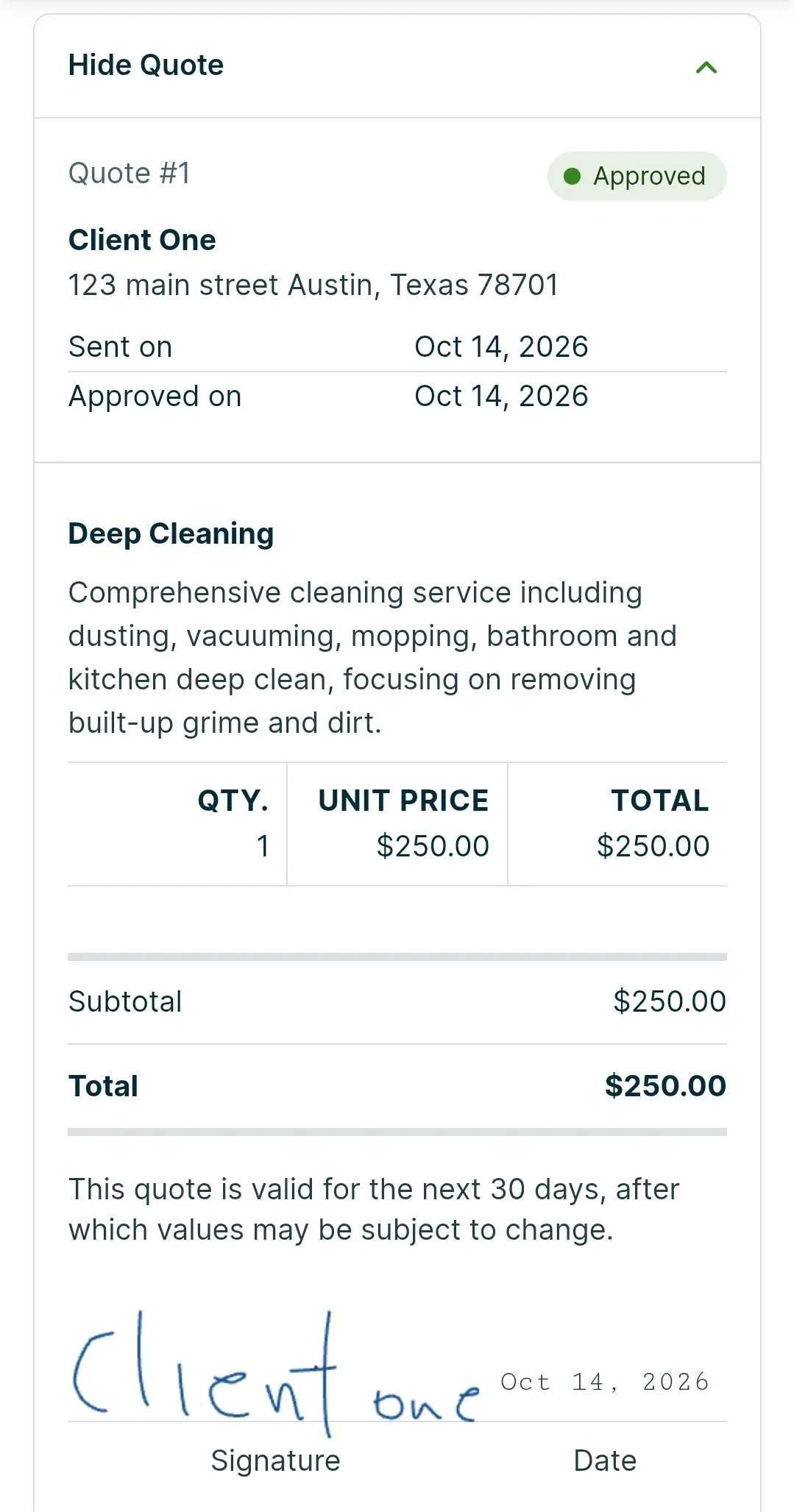
On day 4 we sent a $250 deep-cleaning quote to a client’s test email. Building it was easy, the email arrived right away, and both the email and the quote looked professional. Approving it as the client was easy too, and the client signs on the screen. When the client approved, Jobber showed an eye-catching notice in the app. The whole thing took about 10 minutes.
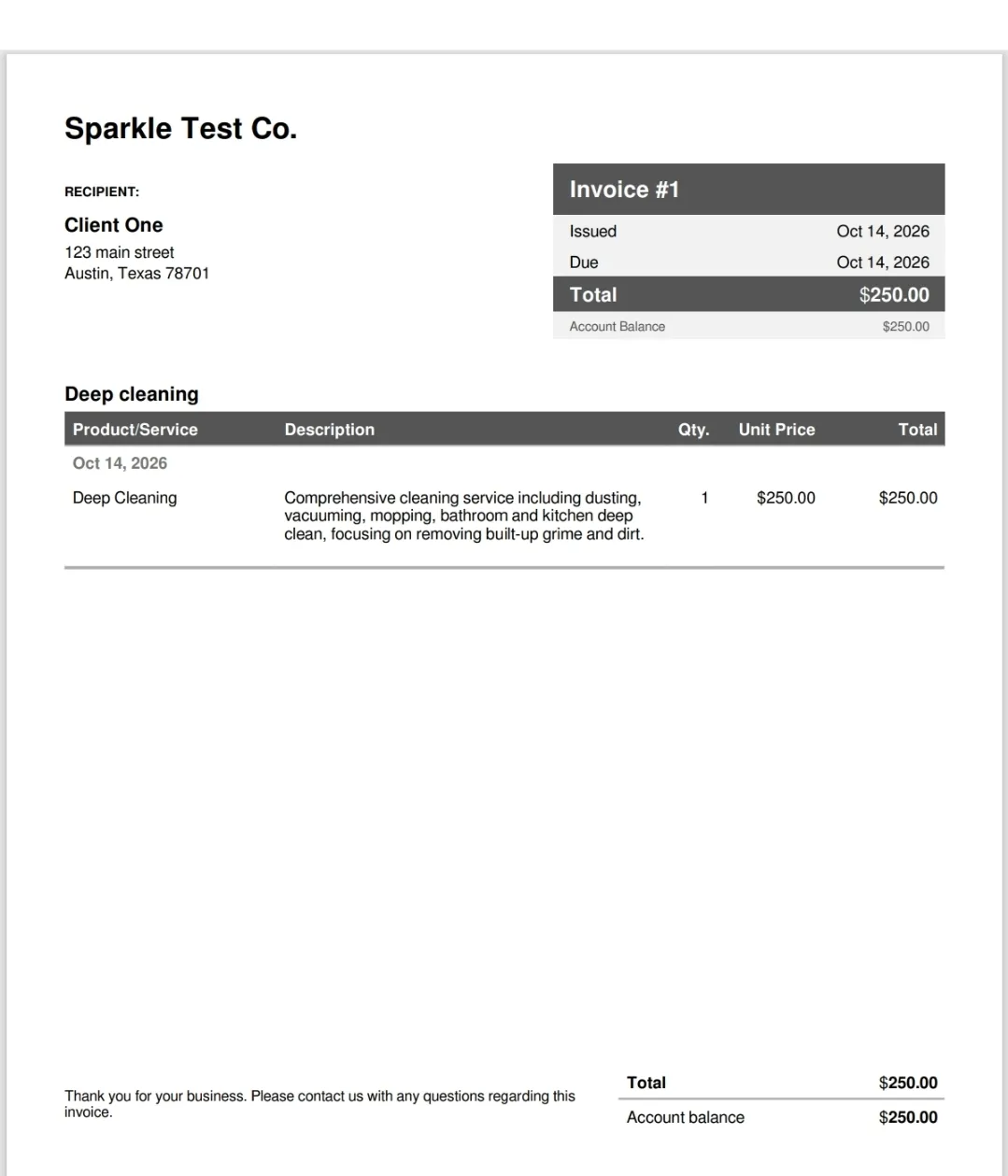
On day 5 we turned the approved quote into a job and then into an invoice. It took a few steps, but we didn’t have to retype anything, because everything carried over from the quote. Jobber offers to create the invoice right away or later. The invoice and its email looked professional too, and it all took about 10 minutes.
Getting paid
This is the part we couldn’t fully test. Our invoice email had no button to pay by card. Instead, it told the client to contact the company. When we tried to record a card payment, Jobber asked for the details of a payment made elsewhere, like a transaction number. We didn’t find a way to turn on card payments in our trial account.
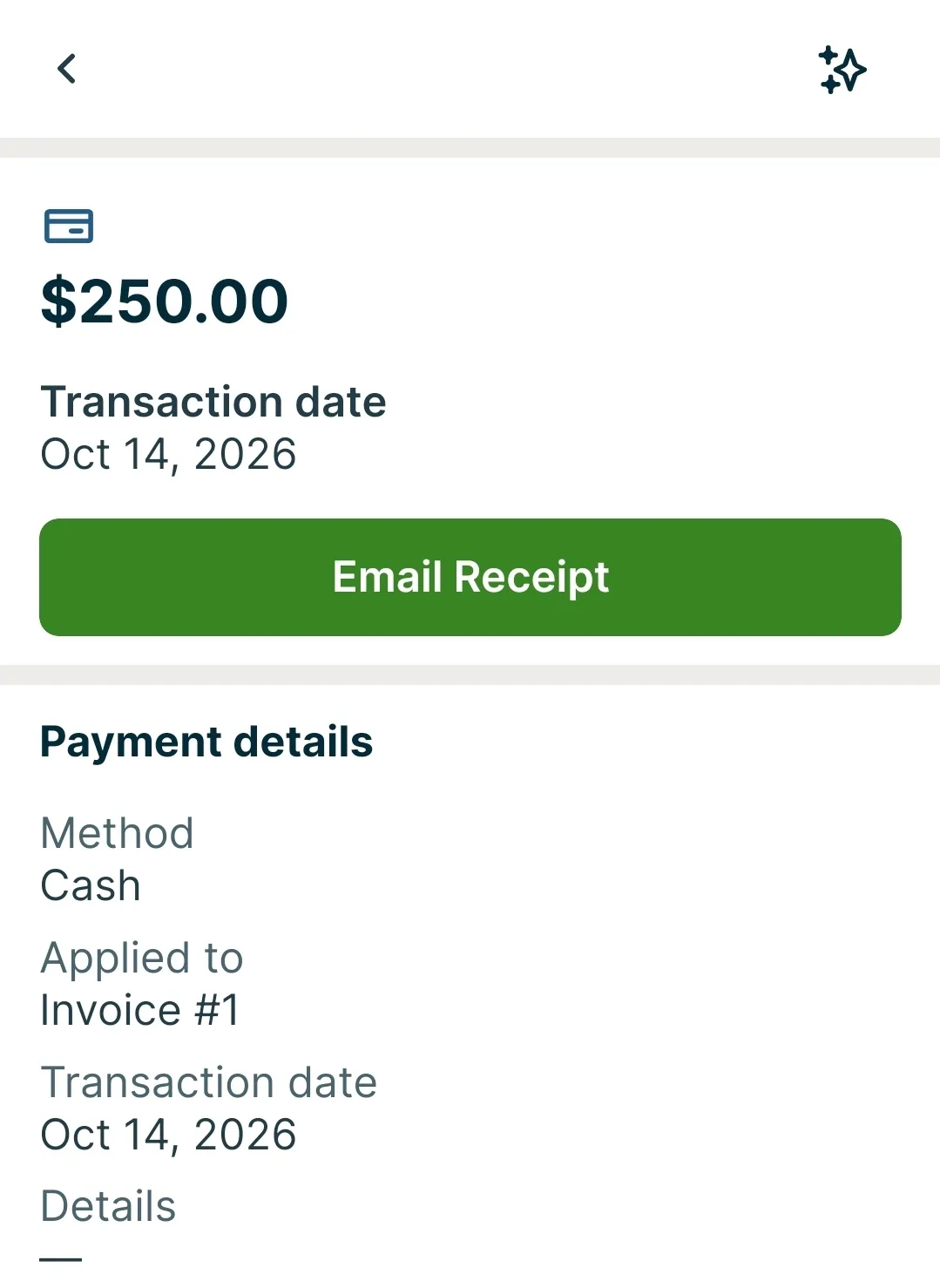
Recording a cash payment worked. The invoice was marked paid right away, and the client got a receipt by email with a PDF attached. That took about 10 minutes.
The team and the cleaner’s app
We invited two test cleaners on day 7. Jobber only asks for an email address (the phone number is optional), and the invites arrived. It took about 15 minutes. One mix-up: the job form has both a Salesperson field and a Team field, and we first put a cleaner in the wrong one. Cleaners go in Team.
Jobber also counts everyone you invite as a user, even before they accept. With the owner and two invited cleaners, our account read “3/1 seats assigned”.
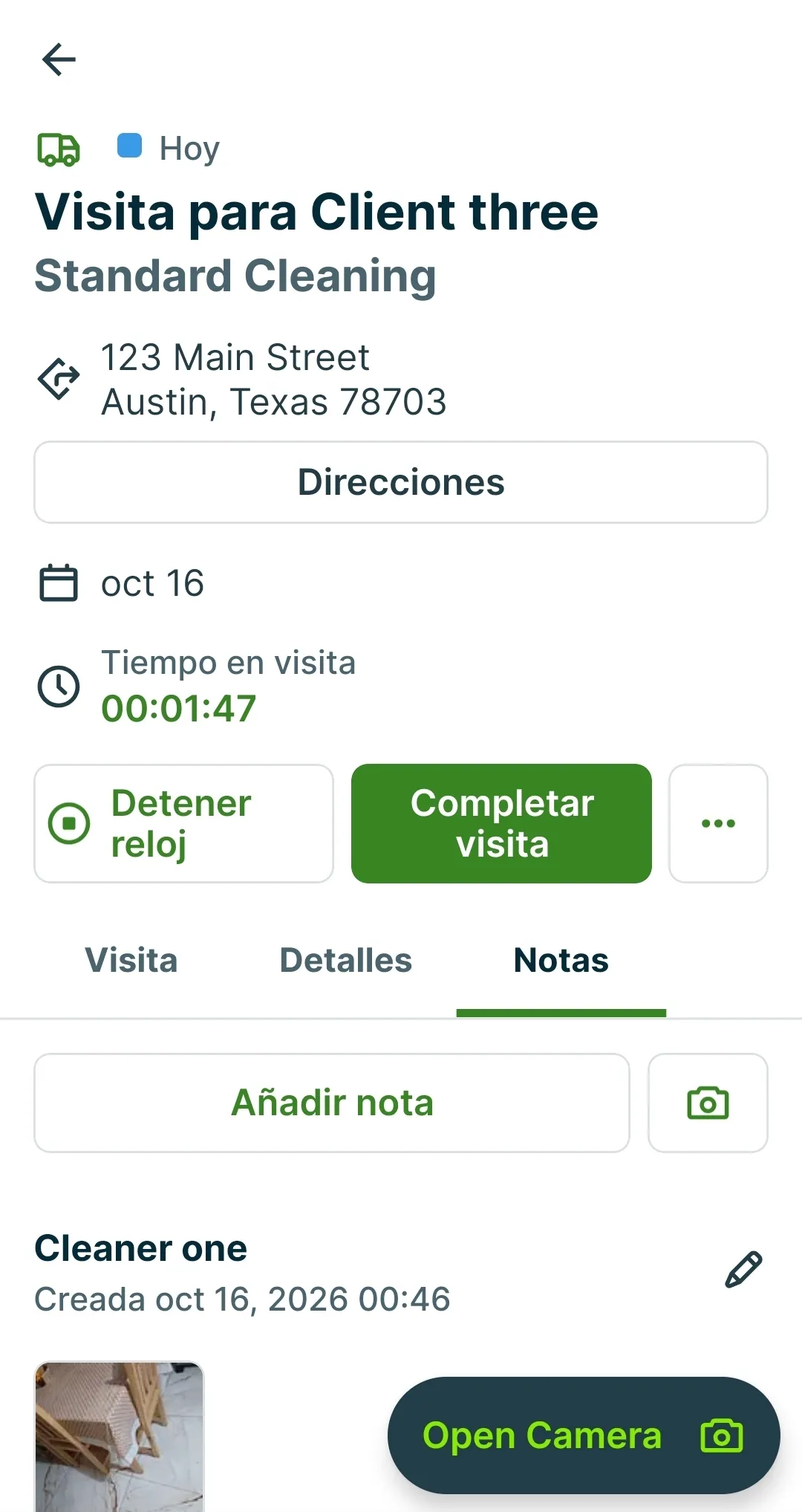
On day 8 we accepted the invite as a cleaner, which only asked for a name and a password. In the phone app, the cleaner saw each visit on its day, and a new-job alert arrived almost instantly. The app showed up in Spanish for our cleaner, with a few labels left in English, like “Open Camera”.
Getting directions, starting the visit timer and adding a photo was very simple. As the owner, we could see the photo and the time, and Jobber told us when the visit was done. After the last visit, the job switched to “Action Required”: Jobber wants you to close it or book another visit.
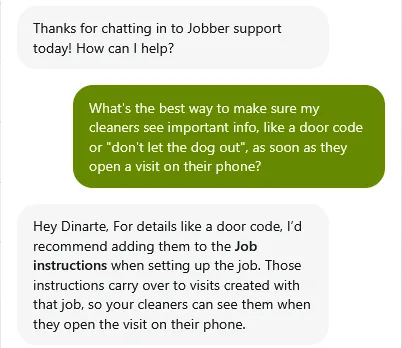
Notes vs. instructions. On day 10 we added client notes: a door code, a dog and an allergy. They were easy to add, and the cleaner saw them all, but only after opening the visit’s Notes tab. When our cleaner left a note about an unlocked back door, Jobber didn’t alert us. On day 12, support told us to use the job’s Instructions field instead, and on day 13 we tried it. The door code and “cat inside” showed at the top of the cleaner’s visit screen, with no searching.
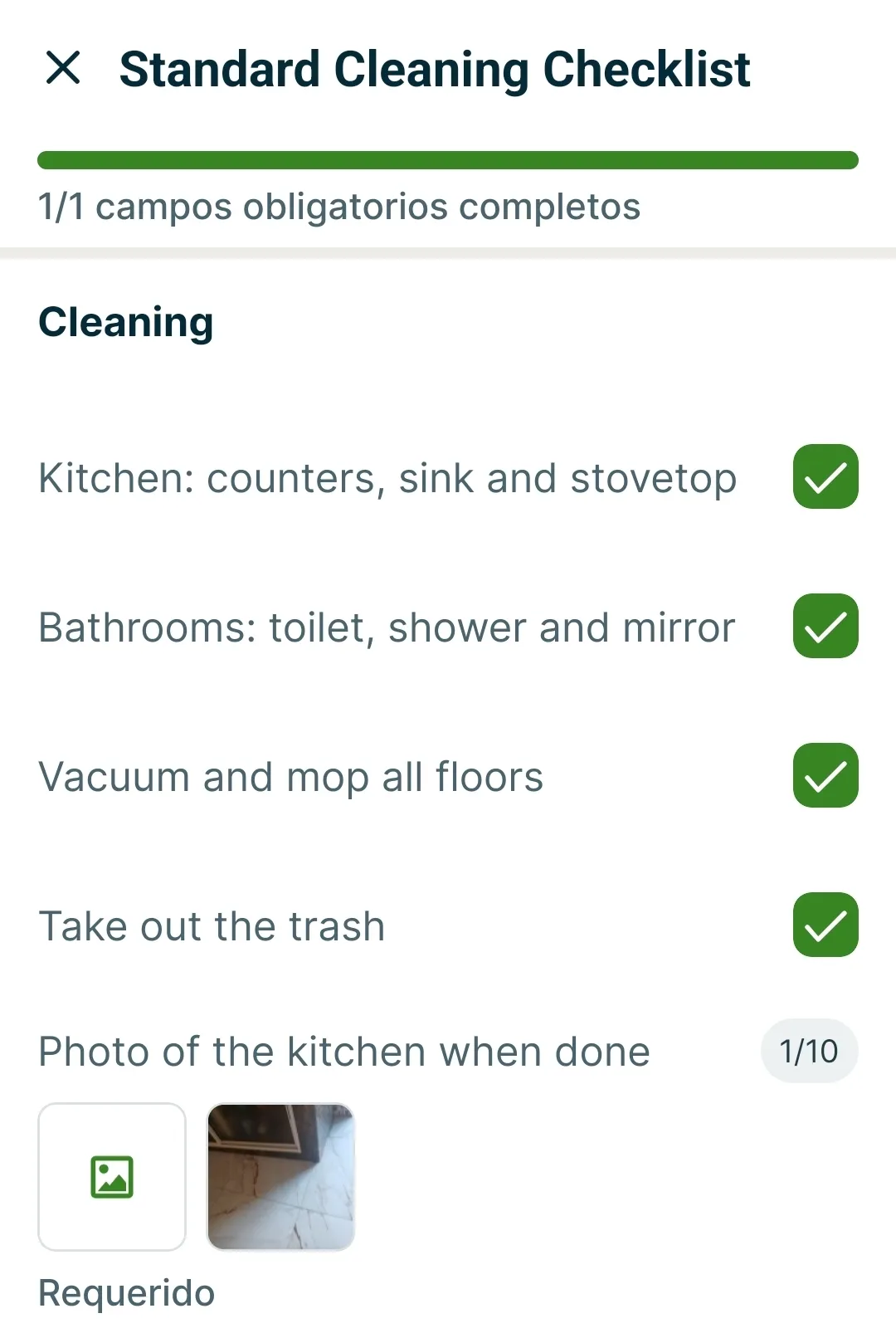
Checklists worked in the free trial. We built a “Standard Cleaning Checklist” with four tasks and a required photo. There are no ready-made templates, so you build it from scratch, but the editor is easy to use. On the phone, the cleaner could fill it in with one hand, and couldn’t finish without the required photo. As the owner, we saw the ticks and the photo, and could email or download the filled checklist. Two settings are worth knowing: attaching a checklist to new jobs automatically is off by default, and on an existing recurring job you can only add a checklist to all remaining visits at once, not to a single visit. To check a clean in person, use our white glove test checklist.
Clock-in. On day 14, clocking in was easy: it’s the first thing on the cleaner’s home screen. To clock out, you tap the running timer, which opens another screen. The 11 minutes showed up in the Timesheets report as 0.2 hours, since Jobber shows time in decimal hours.
“On my way” alerts. We didn’t find an “On my way” button, either as the cleaner or as the owner. Jobber’s help center says this alert goes out by text message, only on some plans and only in the US, Canada and the UK. Our trial account had no texting.
Reminders, confirmations and the client hub
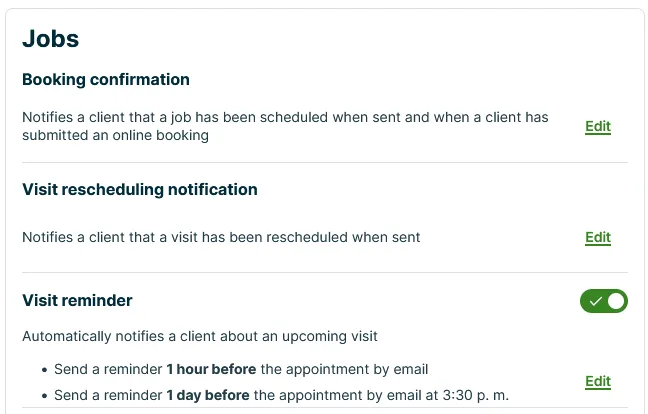
Reminders were on by default: an email the day before at 3:30 PM and another 1 hour before the visit. They arrived on time: the day-before reminder came at 3:31 PM, and the 1-hour reminder came at 9:00 for a 10:00 arrival. The email showed the date, address and arrival window, with a button to view the appointment. From there, the client can confirm with one click, and Jobber then shows “Client has confirmed the appointment”. You can also send a reminder by hand and edit its text first. Ours arrived in under a minute. There was no text-message option in our account.
Booking confirmations aren’t automatic. In Jobber’s settings, the booking confirmation has no on/off switch. It goes out when you press “Send Booking Confirmation”, or when a client books online. Two of our clients never got one, because we didn’t press the button.
A thank-you email with a survey goes out when a visit is completed, asking the client how likely they are to recommend the business on a scale of 0 to 10.
The client hub looks professional. Our client could see the approved quote, the paid invoice and the upcoming cleanings, each with its arrival window. The client can also request a cleaning in three steps: pick the address, describe the job (with up to 10 photos) and review. When we sent a request as the client, Jobber emailed us the same minute and showed an alert on the owner’s phone, and the client got a “Thanks for your request!” email. One catch: if you preview the hub with “Log in as Client”, the New Request button is disabled. We couldn’t test paying from the hub, because card payments weren’t on.
A setup tip: our emails to clients listed the account owner’s personal email as the contact, because the company email field in Settings was empty. Fill it in before you send anything.
When a cleaning is missed
One move-out cleaning, booked for a Friday, never happened, because it was assigned to the cleaner who never accepted the invite. That evening, Jobber showed no warning, just the usual “Mark Complete” button. Three days later, the job showed as “Late” in red in the jobs list. Meanwhile, the Team productivity report credited that cleaner with one visit and $350 for a job that was never done. If your crew misses a cleaning, you’ll need to catch it yourself.
Reports
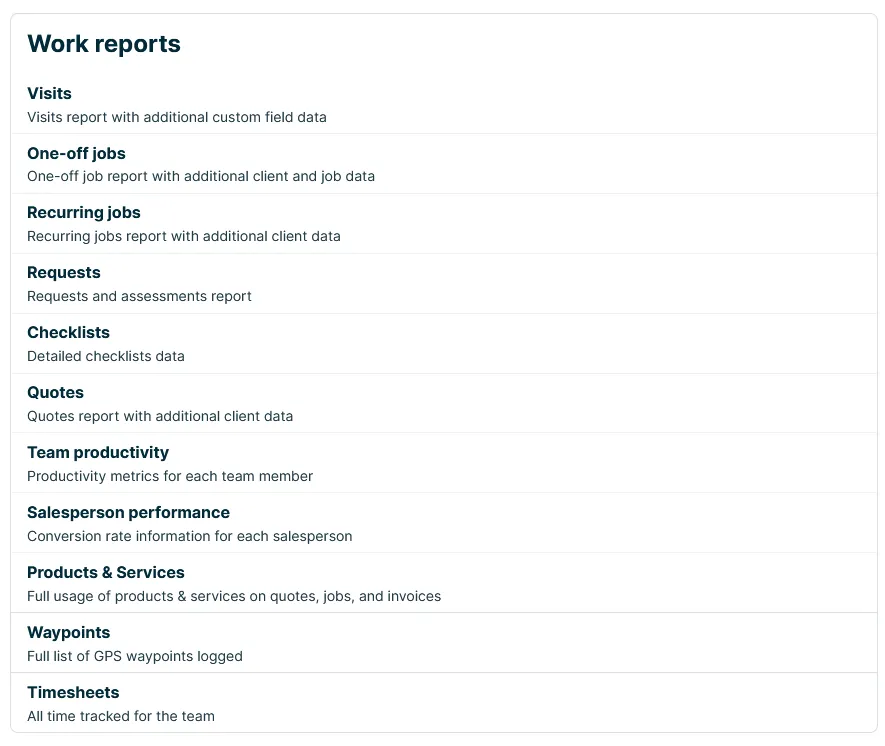
On day 11 we went through the reports. They were easy to find, none were locked in the trial, and we found them easy to understand and useful for staying organized. There are 7 financial reports and 11 work reports, including visits, checklists, team productivity and timesheets. An emailed export arrived in about a minute.
A few defaults tripped us up. The Insights overview opened on the previous month, so everything read zero. Reports default to the last 30 days, so upcoming visits and our checklist didn’t show until we changed the dates. “Projected income” said $0, because it only counts unpaid invoices. The Visits report for October did show $960, including $240 of upcoming weekly cleanings.
Support
On day 12, a Monday afternoon during Jobber’s support hours, we asked the same questions we ask every app’s support team.
Chat is easy to find: it’s the sparkle icon at the top of the web app. An automated assistant answers first. When we asked for a person, an agent joined in under a minute and answered our door-code question in about 2 minutes. The answer was right: use the job’s Instructions field. We tried it on day 13 and it worked. When we asked about support in Spanish, the answer was “Yes, we do :)”, without saying how to get it. Nobody tried to sell us anything.
Email: we asked which plan we’d need for the owner and two cleaners, and what it would cost. A person replied the next day, 22.5 hours later, within Jobber’s “one business day” promise. The answer was clear and correct: Connect for 2 to 5 users, at $199 a month with no commitment, $169 a month with a 12-month commitment, or $149 a month paid annually ($1,788 up front), plus taxes. It explained that Core wouldn’t work because it covers 1 user plus only 1 extra paid seat, mentioned the October promotion and pointed us to the plan wizard. It didn’t push a bigger plan.
Pricing
These are the regular prices on Jobber’s pricing page on October 21, 2026, in US dollars per month, before taxes. They were the same when we checked again on November 3, 2026. “Up to 5 users” is the page’s “2-5 people” option. Until October 30, 2026, a “Save up to 40%” promotion lowered them for the first 3 or 12 months. On November 3, the pricing page showed no promotion.
| Plan | Billed annually | 1-year commitment, billed monthly | No commitment |
|---|---|---|---|
| Core (1 user) | $29 | $39 | $49 |
| Connect (1 user) | $99 | $119 | $139 |
| Connect (up to 5 users) | $149 | $169 | $199 |
| Grow (up to 5 users) | $229 | $259 | $299 |
| Plus (up to 5 users, through sales) | $399 | $439 | $499 |
With the promotion, Connect for up to 5 users was $105 a month for the first 12 months on annual billing, $102 for the first 3 months with the 1-year commitment, or $140 for the first 3 months with no commitment.
According to the pricing page, Core covers scheduling, quotes, invoices with online payments, a website and reports. Connect adds automated client reminders, automatic payments, checklists, quote and invoice follow-ups, QuickBooks Online sync, and time and expense tracking. Grow adds two-way text messaging, job costing, optional line items and custom automations.
Which plan does a cleaning crew need? For the owner plus two cleaners, Connect. Core is for 1 user, and support told us it allows only 1 extra paid seat, so it can’t hold three people. It also lacks automated reminders, checklists and time tracking, which we used throughout this test. Jobber’s own plan wizard recommended Connect too. Watch the “Recommended” badges, though: for 2 to 5 people, the pricing page highlights Plus, the most expensive plan, and the plan page inside our account highlighted Grow.
The free trial. We never entered a credit card, and Jobber says the trial “will automatically expire so there’s no need to cancel”. Ours was a trial of the Grow plan, so it let us use features Core doesn’t include, like checklists and automated reminders. Check that the plan you pick includes what you tried. On October 21, our account showed “1 day left in trial”.
When the trial ended, Jobber didn’t email us, before or after. We logged back in on October 26:
- On the computer, a banner said “Access to Jobber through your web browser has expired. To unlock access, choose a plan.” Jobber wouldn’t let us go anywhere but the plan picker, so we couldn’t open our clients or jobs.
- In the phone app, the owner’s account said “Your Grow plan trial ended” and had moved to a free plan with “Access to features on mobile” and up to 5 clients. Jobber says upgrading unlocks unlimited clients, “full control to edit or remove clients” and “doing more from your desktop”. After we closed that notice, we could still look around the app freely. Our cleaner’s app showed no notice and worked as usual.
- Client reminders stopped. Our weekly client got both reminders for the Thursday, October 22 visit, but none for the next cleaning, on Monday, October 26.
If you run real clients through the trial, pick a plan before it ends.
For prices with 10 or 15 users, card fees, extra users and billing terms, see our full Jobber pricing breakdown.
Screenshots from our test
What we couldn't test
- Card payments, on the invoice or in the client hub: we didn't find a way to turn on card payments in our trial account, so we recorded a cash payment instead.
- Text messages, including "On my way" alerts: our trial account had no texting. Jobber's help center says these alerts go out by text, only in the US, Canada and the UK.
- Phone support: Jobber's line is a US toll-free number, and we test from outside the US.
- Jobber's AI assistant: we didn't keep a screenshot of its answer, so we left it out.
Want to try it yourself? Most plans start with a free trial.
Affiliate link. We may earn a commission. Why that's okay